Joining/Navigating to Working Groups (WG)
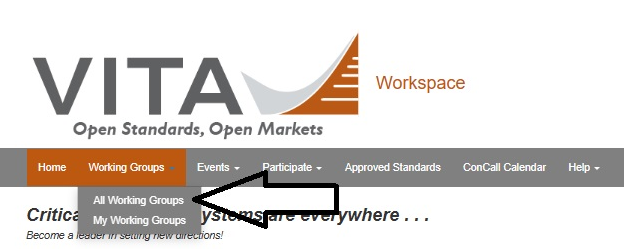
- Navigating to Working Group: Top tab, on "Working Groups" dropdown menu, select "All Working Groups".
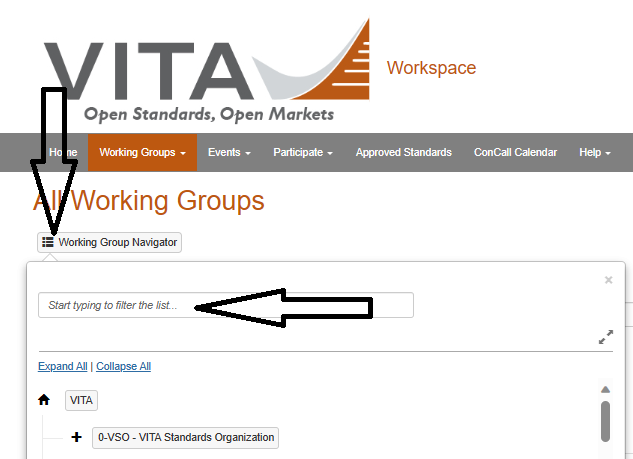
- Navigate to appropriate WG by scrolling thru WG list or type 3 characters of WG of interest.
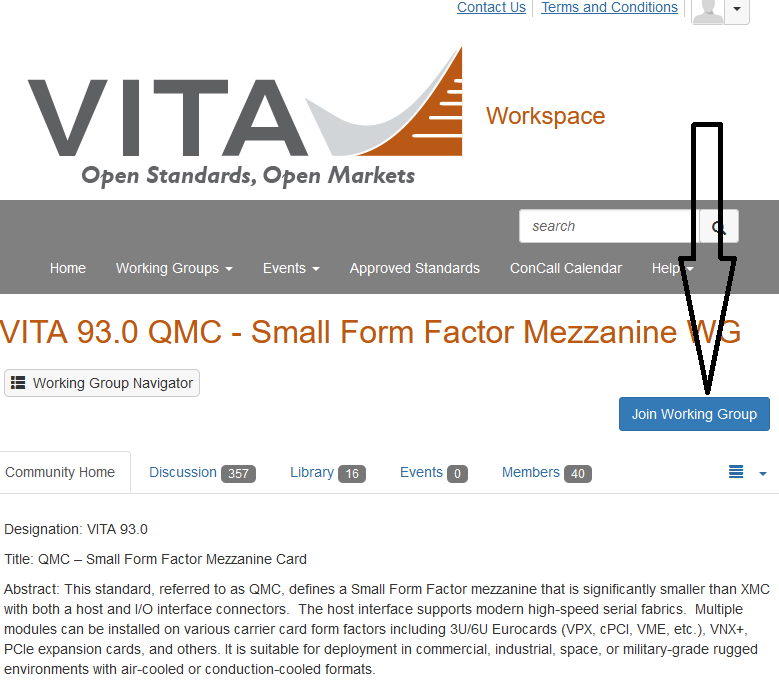
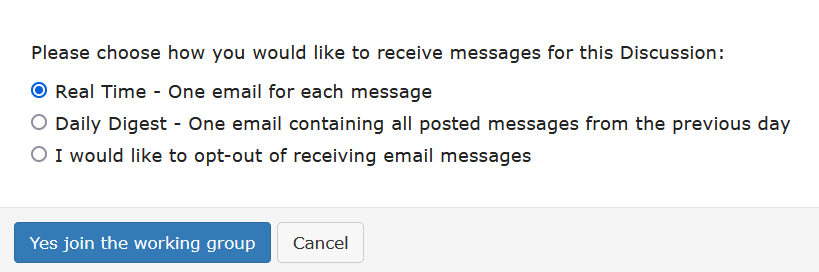
- Click "Join" and choose how you would like to receive Meeting Notification and Discussion messages
- then Click "Yes join the working group"
Conference Calls
- Conference Calls: Go to workspace.vita.com >> Concall Calendar - Find the meeting you wish to join from the calendar and click the link. Be sure you have the password from the meeting administrator.
Document Navigation in Workspace
- Document folder navigation in workspace is not obvious.
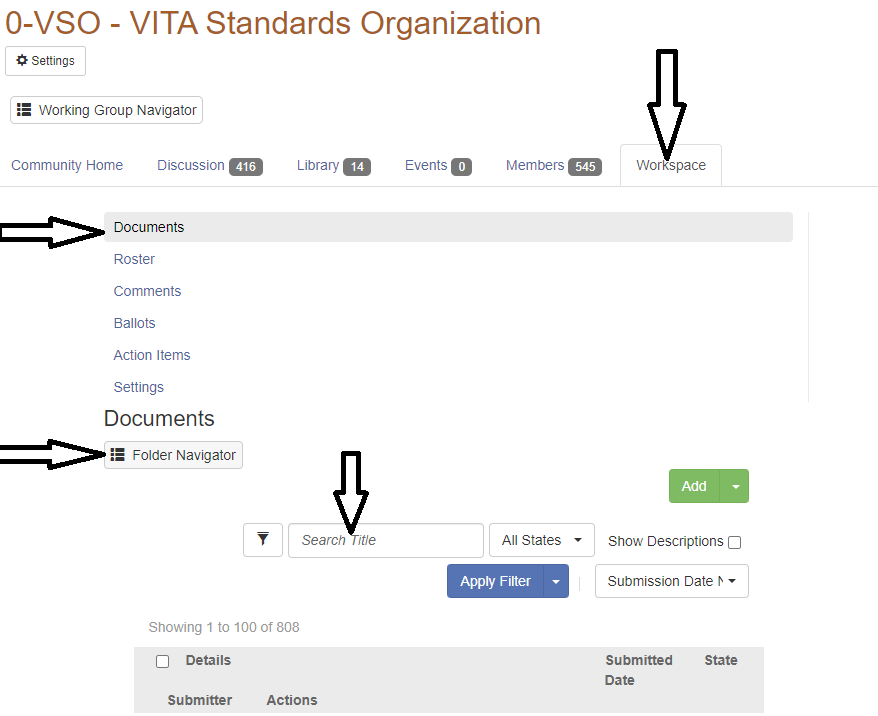
- Navigate to WG of interest
- Click on "Workspace" Tab
- Click on "Documents" Tab
- Click on "Folder Navigator" Icon to select a folder (this is the non-obvious, It is ),
- When "All Folders" is selected- all files in all folders are displayed
- Ensure "Search Title" is blank - otherwise you may not see the file you are expecting to see, It would have been "Filtered" out.
- Sample WG File Folder Structure
Posting Document to Workspace
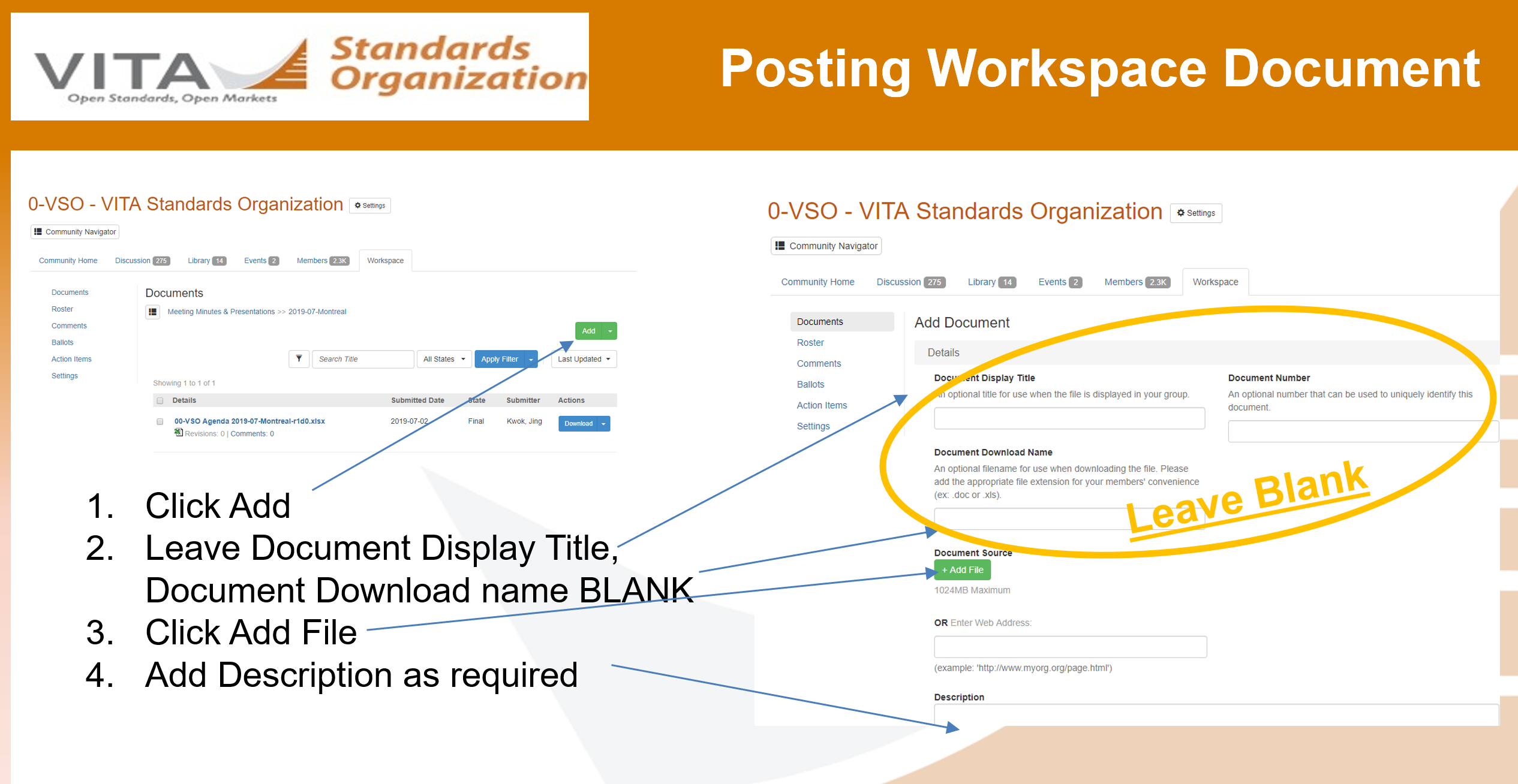
- WG members only have rights to post to the "Uploads" folder. Only the WG chair and Draft Editor have full rights to post to all folders.
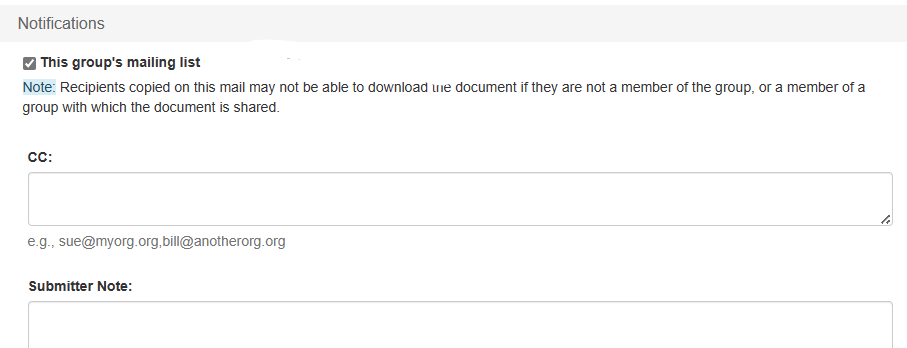
- DO NOT POST documents to the "Library" tab. The library is used for discussion attachments by the system. Attachments as a discussion is discouraged as it becomes difficult to track. Instead, the attachment should be uploaded to the "Uploads" folder with the notification flag set with an appropriate "Submitter Note".
Workspace Document File Naming Convention
- Convention: vitaxxdy-doctype-rev-authorInitialDate-description
- Note that there are no “spaces” and “.” in the filename. “_” is used as space and “-” is delimiter between fields.
- Example:
- vita65d0-r0d23-jk20160930
- vita65d1-draft-r0d2-gr20161022-final_WG_ballot
- vita67d3-comments-r0d97-mw20161023-resolution_spreadsheet
- vita48d4-report- r0d2-br20160803-first_WG_ballot
- vita65d0-minutes20170920-ms20160930
Posting to Discussion
- use email alias: "vita-xx@ConnectedCommunity.org". If this does not work, goto the discussion page of your community, then the "Post New Message" button. The email alias of the community is posted on the community home page.
- Do not use this feature to post documents. Documents should be uploaded to the "Uploads" Folder.